
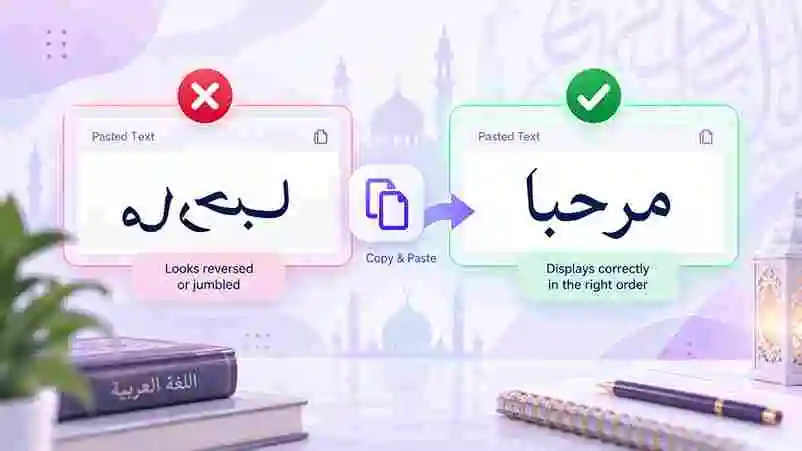
Why Is Arabic Text Reversed When I Copy and Paste It?
You copy a line of Arabic text from one place, paste it somewhere else, and suddenly the letters look jumbled, the words appear out of order, or the whole line runs the wrong way. It feels like the text broke during the copy, but nothing is actually damaged. The characters you copied are still correct underneath, even though what you see on the screen looks completely wrong.
What you are seeing is a direction problem, not a spelling or font problem. Arabic reads from right to left, while languages like English read left to right, and many apps, tools, and websites were originally built with only left to right languages in mind. When that assumption clashes with a right to left script like Arabic, the display gets confused even though the actual content you pasted stays exactly the same. This is a common frustration for students, designers, translators, and anyone typing Arabic across different devices and platforms, and thankfully it is almost always fixable once you understand what is really happening behind the scenes.
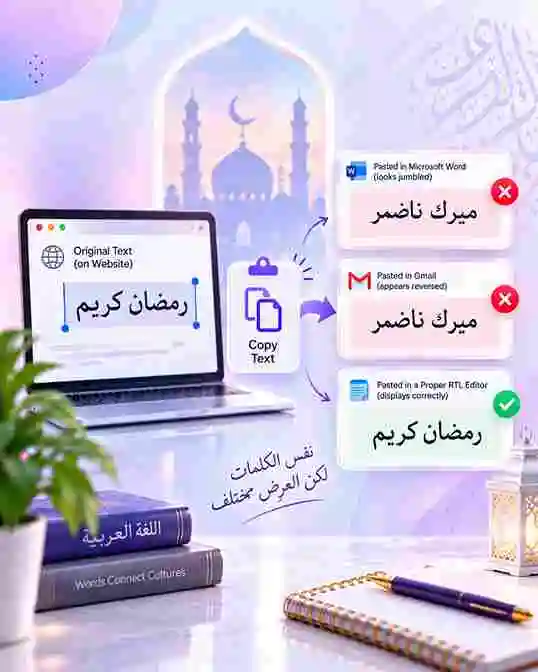

Why Arabic Text Direction Gets Mixed Up
How Computers Store Arabic Text
Every Arabic letter is saved in what is called logical order, meaning the order you actually typed it in, from the first letter to the last, exactly as a person reading it aloud would encounter each sound. This storage order never changes, no matter which app, device, or operating system you paste into, and it never changes just because a screen displays it strangely. What changes from one app to another is how each program chooses to interpret and render that stored order on the screen for the person looking at it.
The Bidi Algorithm
Most modern software relies on something called the bidirectional algorithm, or bidi for short, to decide how mixed direction text should appear visually to a reader. This algorithm works well most of the time, quietly figuring out which stretches of a line should flow right to left and which should flow left to right. It can get confused, though, when Arabic sits next to numbers, English words, punctuation marks, or symbols, since all of those elements are still read left to right even when they appear inside an otherwise right to left Arabic sentence.
When an app applies this logic incorrectly, applies an older or incomplete version of it, or skips the calculation entirely, the text on screen can end up looking flipped, split into the wrong pieces, or arranged in an order that makes no visual sense at all.
The Arabic font generator lets you
The Arabic font generator lets you type or paste Arabic text and preview it instantly across a range of Arabic font styles — modern, traditional Naskh, Kufi-inspired, handwriting and decorative. Adjust the color, background, size and alignment, then download your design as a high-quality PNG or JPG image.
This tool created-paste text tool instead.
Quick Fixes When Arabic Text Looks Reversed
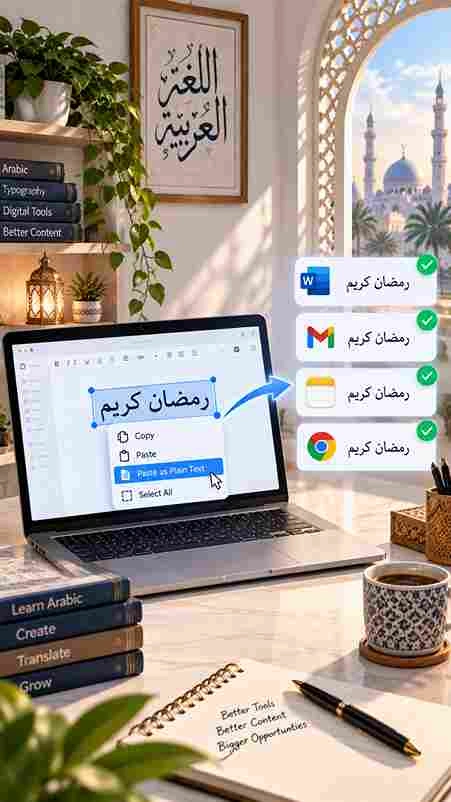
- Paste as plain text instead of formatted text, using a paste special or paste without formatting option so hidden formatting from the original source cannot interfere with how the destination app renders direction
- Check whether the destination app has a right to left or bidi text setting, a paragraph direction option, or a language setting you can switch on, since many apps hide this control until you go looking for it
- Avoid copying directly from PDFs when possible, and retype short phrases instead, since PDFs sometimes store visual order rather than logical order, which confuses whatever app you paste into next
- Keep numbers, punctuation, and English words separated from Arabic with a space or a neutral character, since crowding them together gives the bidi algorithm less room to correctly judge each direction
- Update your browser, operating system, or app to the latest version, since older software often has weaker or outdated support for right to left scripts
- Use a source that already gives you clean, correctly ordered Arabic Unicode text rather than text extracted from an image, a scan, or a low quality conversion tool
For a quick way to get clean, ready to paste Arabic text without any of these direction headaches, the Arabic Copy and Paste tool is built specifically to hand you text that stays correct wherever you drop it.
How to Keep Arabic Text Correct When Designing
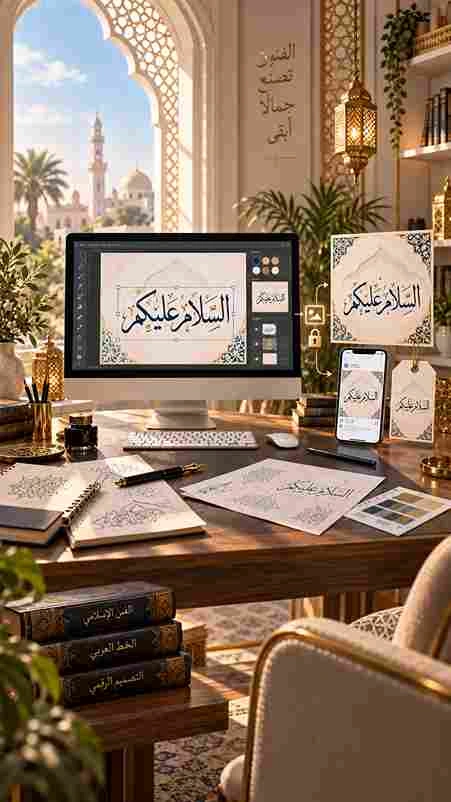
If you are creating Arabic text for a design, a caption, a poster, or a graphic rather than a document you plan to keep editing later, it often makes sense to sidestep the direction problem completely instead of chasing settings across different apps. Turning your Arabic text into a styled image means the letters are locked in place visually the moment you export the file, so there is nothing left for a bidi algorithm to reinterpret once you paste or upload it somewhere else.
This is one reason font and calligraphy tools are genuinely useful beyond just making text look attractive. Once you pick a style, adjust the color and size, and export it as an image, what you see on your screen is exactly what everyone else will see, whether you are posting on social media, adding a logo mark to a product, or dropping text into a poster or invitation. There is no app on the other end trying to recalculate direction, because the text has already become a picture.If your text starts out in English and you simply want it written in Arabic script first, converting it properly from the very start also helps you avoid a lot of these direction issues later on, since you are not stitching together two languages inside the same line by hand. The English to Arabic Font Generator handles that conversion for you, so you begin with clean, properly formed Arabic text rather than trying to untangle a mixed up result after the fact.
Frequently Asked Questions
Why does my Arabic text reverse in Excel?
Spreadsheet software often defaults to a left to right layout for the whole sheet unless the cell or sheet direction is manually switched to right to left. Numbers mixed into an Arabic cell can make the problem look worse than it actually is. Checking the sheet direction settings, usually found under the page layout or review options, solves this in most versions of Excel.
Why does Arabic text look backwards in code editors?
Most code editors are built around left to right programming languages and do not apply the bidi algorithm the way a word processor or browser would, since developers rarely need it for code itself. This means Arabic strings inside your code, such as text used for an app interface, can display oddly on screen even though the stored text and the final output to users remain completely correct.
Is reversed Arabic text a font problem?
Not usually. Fonts control how each individual letter looks and connects to the ones beside it, not which overall direction the line is displayed in. Switching fonts rarely fixes a direction issue on its own, though a very old or incomplete Arabic font can sometimes make an existing direction problem harder to notice or diagnose.
How do I fix reversed Arabic text in Word?
Select the paragraph, then switch its direction to right to left using the paragraph direction option, usually found in the paragraph settings or the layout tab depending on your version. This tells Word to lay the same stored text out correctly on the page instead of guessing at the direction based on the first character it detects.
Does this reversing issue happen with other right to left languages?
Yes. Any right to left script, including Hebrew, Persian, and Urdu, can run into the same kind of direction mismatch in apps that were not built with right to left support in mind from the start. The underlying cause is the same in every case, since it comes down to how the bidi algorithm, or the lack of one, handles a script that reads in the opposite direction from English.